
Merge Patient
Sometimes, a patient may have multiple records in the system, and we need to consolidate them into a single chart. To streamline this process, we offer a tool called 'Merge Patients' within the CompleteMD portal.
Here are the steps that needs to be taken when using this tool:
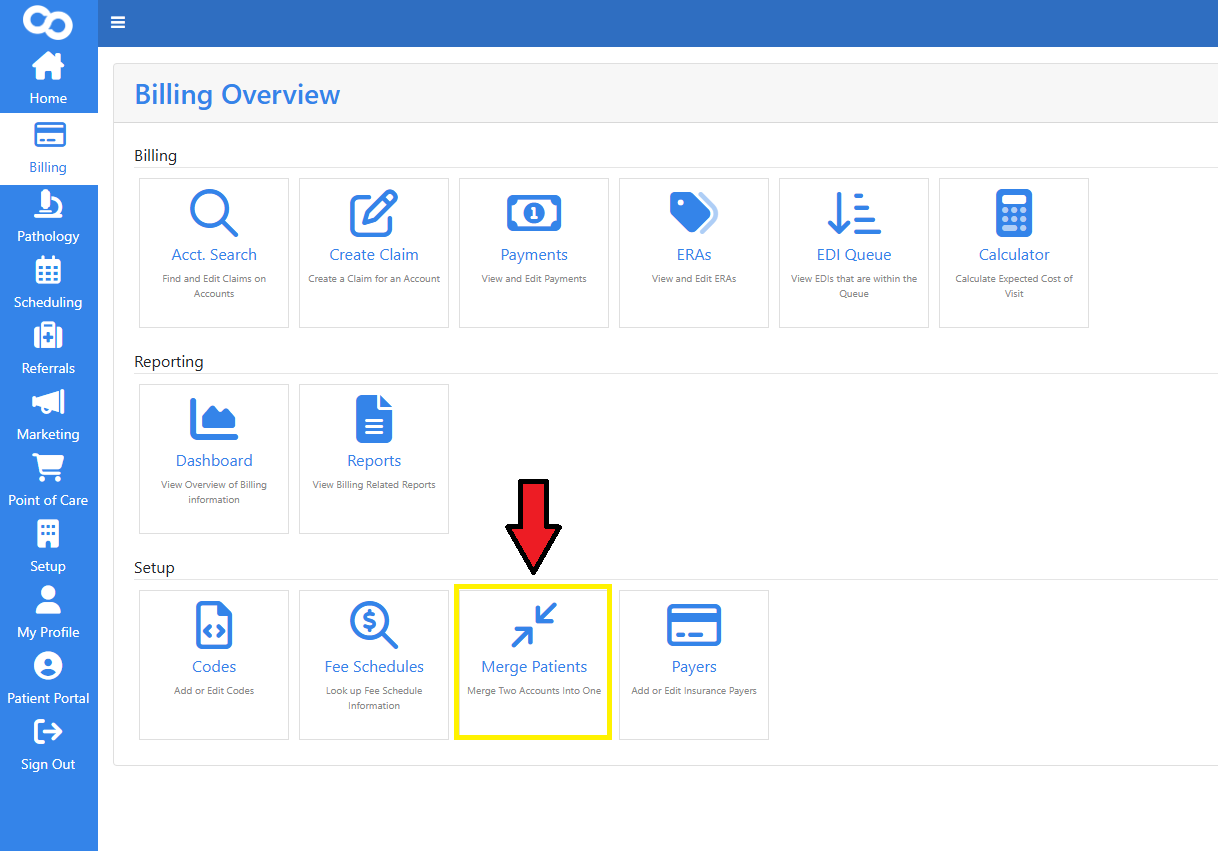
- Go to Setup > Billing > Merge Patients
-
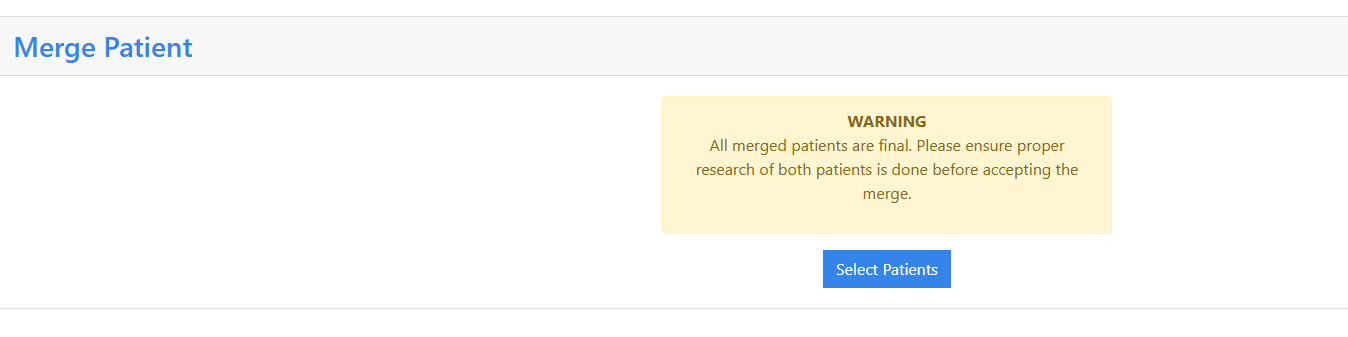
Click on Select Patients
- In the pop-up window that opens, search for the two patient accounts that need to be merged. On the left side (From Patient), select the incorrect patient (the chart you want to discard). On the right side (To Patient), select the correct patient (the chart you want to retain). This ensures that the correct patient information is preserved during the merge process.
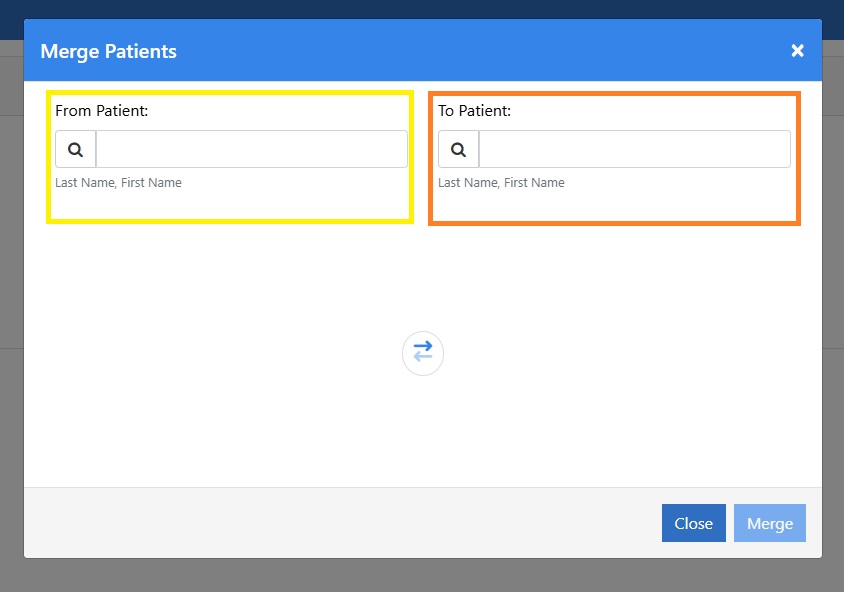
- Once you have selected both the patients, verify the information carefully, check patient and then click "Merge".
- After the Merge, the incorrect patient will get deactivated from the system and the charts would be combined.
Important Note-
In certain cases, the merge process may fail, displaying an error message: "Please select two different patients to merge." In this case, please call our support number and we would be able to assist you.